

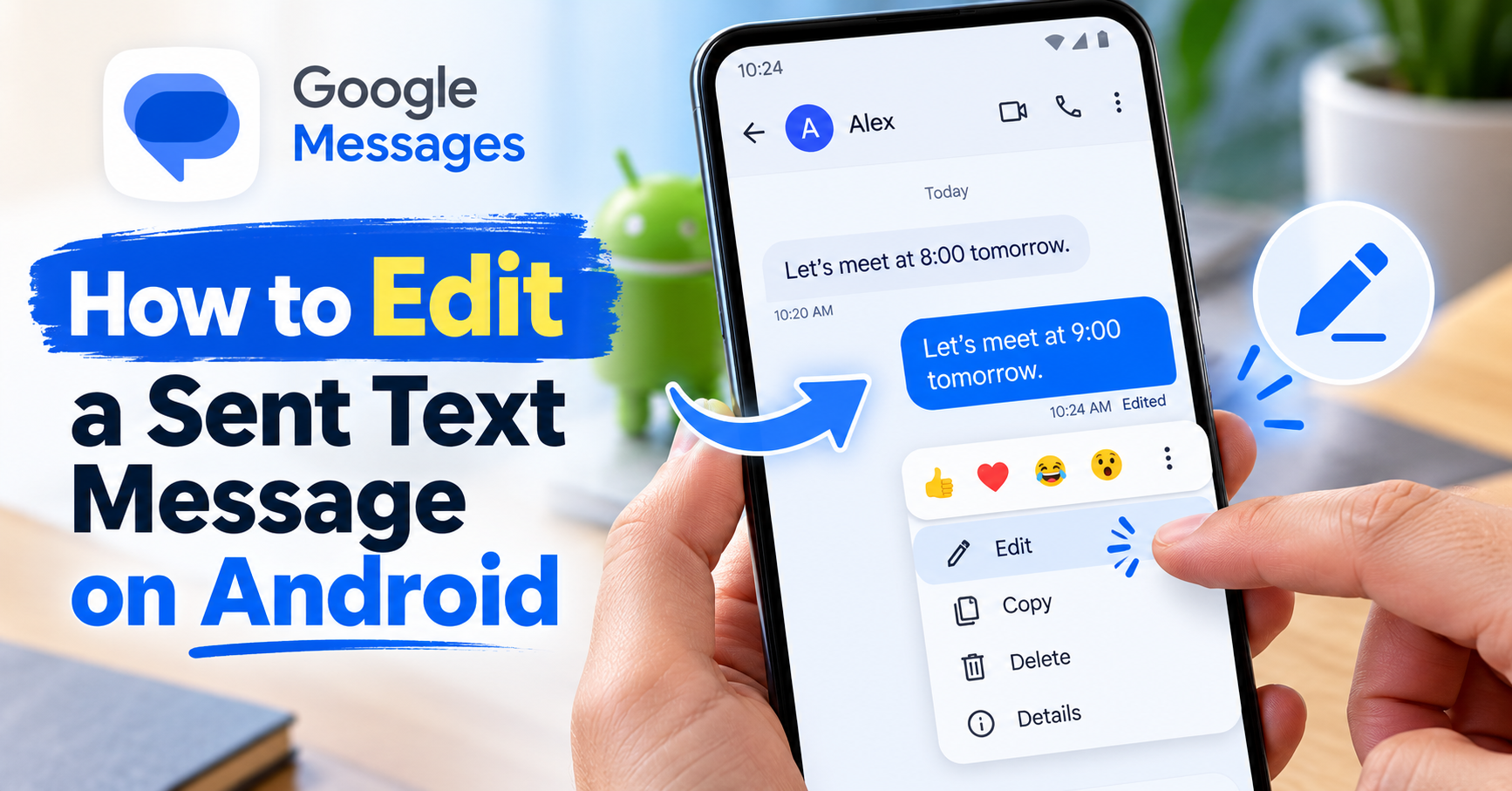
We’ve all done it. You send a text, put your phone down, and immediately notice a mistake. Maybe autocorrect changed a name, you typed the wrong time, or your message simply didn’t say what you intended.
The good news? You may be able to fix it without starting a new conversation.
If you’re wondering how to edit a sent text message on Android, Google Messages offers a straightforward editing feature. You can correct a recently sent message within 15 minutes, although what the other person sees depends on the type of conversation and their messaging app.
This guide explains exactly how to edit a message, what works with RCS and SMS, why the Edit button sometimes disappears, and what to do when you can no longer change a text.
Quick Answer: Can You Edit a Sent Text on Android?
Yes. Google Messages allows you to edit a sent message for up to 15 minutes after sending it.
Here’s the quickest method:
- Open the Google Messages app on your Android phone.
- Open the conversation containing your sent text.
- Touch and hold the message you want to change.
- Tap Edit at the top of the screen.
- Correct the text.
- Tap the checkmark to confirm your changes.
That’s it. When the recipient’s messaging system supports editing, the updated message can appear with an Edited label.
However, a correction is not always a silent replacement. For SMS or unsupported recipient apps, the other person may receive a follow-up message beginning with an asterisk (*).
How to Edit a Sent Text Message on Android: Step-by-Step
Let’s walk through the process in more detail.
Step 1: Open Google Messages
Launch Google Messages on your Android phone.
Make sure you’re using the conversation where you originally sent the message. The edit feature works inside the mobile app, not the Google Messages web interface.
Step 2: Find the Message You Want to Edit
Scroll to the text containing the mistake.
You must choose a message you sent yourself. The editing window starts when the message is sent, so it’s best to act quickly.
Step 3: Touch and Hold the Sent Message
Press and hold the message bubble until the available actions appear.
Look for the Edit option or pencil-shaped icon near the top of the screen.
If you don’t see Edit, the message may be too old, or the feature may not be available in your current app or conversation.
Step 4: Correct Your Text
Tap Edit to open the message in the editing field.
You can fix a spelling mistake, clarify a sentence, or correct important details such as a meeting time.
For example:
Original: “Let’s meet at 8:00 tomorrow.”
Corrected: “Let’s meet at 9:00 tomorrow.”
Read the corrected text before confirming it.
Step 5: Confirm the Edit
Tap the checkmark to apply your changes.
When supported, an Edited label indicates that the message was changed after sending.
If you decide not to make a correction, exit the editing screen without saving.
For the official instructions, see Google’s guide to updating a sent message.
How Long Can You Edit a Sent Message?
Google Messages gives you 15 minutes from the moment a message is sent to make a correction.
This limit applies even if the recipient hasn’t read the message.
For example, if you send a message at 2:00 PM, the editing feature is available only during the following 15-minute window.
After that period, the Edit option is no longer available for that message.
If the time limit has expired, your practical alternative is to send a separate correction:
“Sorry, I meant 9:00 AM, not 8:00 AM.”
This may be less convenient, but it ensures the recipient receives your updated information.
Can You Edit SMS and MMS Messages on Android?
This is where the distinction between message types becomes important.
Google’s current Messages support documentation includes editing for RCS, SMS, and MMS. However, the recipient’s experience is not necessarily identical.
| Message type | What can happen when you edit |
|---|---|
| RCS | Compatible conversations may show an updated message with an Edited label |
| SMS | The recipient receives a new correction message beginning with * |
| MMS | Editing is documented, but how the correction appears depends on compatibility |
| Unsupported recipient app | A separate correction message may be delivered |
Important: An SMS correction doesn’t necessarily remove the original message from the recipient’s phone.
If you sent sensitive or incorrect information, don’t assume that editing erases the first version everywhere.
Want to understand the technology behind these differences? Read our RCS vs SMS comparison for a beginner-friendly explanation.
Can You Edit a Text Sent from Android to iPhone?
Yes, Google Messages supports editing in eligible one-to-one conversations with iPhone users who have RCS chats enabled.
However, compatibility matters.
If the recipient’s messaging system doesn’t support the edit in the same way, they may receive a separate corrected message instead of seeing the original text updated.
Here’s what to remember:
- You still have the 15-minute editing window.
- Both devices’ messaging capabilities affect how the edit appears.
- A correction may arrive as a new message marked with an asterisk.
- You shouldn’t assume the original text becomes invisible.
This distinction matters when correcting an address, appointment time, or another important detail. For critical information, sending a clear follow-up message is often a sensible option.
Why Is the Edit Option Missing in Google Messages?
You might touch and hold a message only to discover that the Edit button isn’t there.
Before assuming something is broken, check these common possibilities.
1. More Than 15 Minutes Have Passed
This is the first thing to verify.
Google Messages doesn’t provide indefinite editing. If the message is older than 15 minutes, the Edit option is no longer available.
What to do: Send a new text with the corrected information.
2. You’re Using the Web Version
You can send and receive texts from your computer using Google Messages for Web, but editing is currently an app-only feature.
What to do: Open the same conversation in Google Messages on your Android phone and try editing there.
If you’re having trouble connecting your computer, see our Messages for Web setup guide.
3. Your Google Messages App Needs Updating
If you’re using an older app version, some features or interface controls may differ.
What to do:
- Open Google Play Store.
- Search for Google Messages.
- Tap Update if an update is available.
- Reopen the conversation and check again.
Updating doesn’t extend an expired editing window.
4. You’re Using a Different Messaging App
Google’s instructions apply to Google Messages. Another manufacturer or third-party texting app may use different features or offer no equivalent.
What to do: Confirm which messaging app is currently open and review its available options.
5. The Feature Isn’t Available in That Conversation
Some features vary with the app, message type, device compatibility, and ongoing product changes.
What to do: Review Google’s current support instructions and check whether the message is eligible for editing.
Don’t repeatedly clear app data or reinstall the app simply to recover an Edit button. Those actions may affect locally stored messaging information and won’t restore an expired editing window.
Does the Other Person Know You Edited a Message?
Often, yes.
Google Messages can display an Edited label so participants know a message was changed.
Depending on the messaging system, the recipient may also see a separate correction instead of an in-place update.
This is particularly important if your original message was already read or captured in a notification.
Editing is useful for fixing mistakes, but it is not a reliable way to guarantee that another person never sees the original wording.
How to Check Whether an Edited Message Was Changed
In supported Google Messages conversations, editing indicators and message details can provide information about changes.
Google Messages has also introduced edit-history information in its message details interface.
The exact controls may differ by app version.
If you’re concerned about a correction, open the conversation and inspect the message details available on your device.
Keep in mind that the recipient may have seen the original text before it was edited.
Editing vs. Deleting a Sent Text Message
Editing and deleting aren’t the same thing.
Editing means correcting a message after sending it.
Deleting for yourself removes a message from your own conversation view but doesn’t automatically remove the recipient’s copy.
Deleting for everyone, where supported, attempts to remove a message from the conversation for other participants as well. Availability and results depend on the messaging service.
If you made a typo, editing is usually the most straightforward solution.
If you sent a message to the wrong person, check whether your app offers an appropriate deletion option, but never assume the content can be completely erased from another person’s device.
For other common messaging problems, our Google Messages troubleshooting guide explains what to check when texts fail to send.
What If You Can’t Edit the Message?
If the 15-minute window has passed or your app doesn’t support editing, you still have several ways to correct a mistake.
Send a Clear Follow-Up
Try:
“Correction: The appointment is on Thursday, not Friday. Sorry for the confusion.”
Call When the Information Is Urgent
For something important, such as a location change or a time-sensitive plan, a quick call can be more reliable than hoping the other person notices a correction.
Confirm the Correct Details
You can ask:
“Just checking that you saw my correction. The meeting starts at 3:30.”
The goal is accurate communication, not merely making a message look perfect.
Tips to Avoid Sending Text Messages with Mistakes
You don’t have to proofread every casual conversation as if it were a formal email. However, a few small habits can prevent frustrating errors.
- Read important messages once before sending.
- Double-check dates, times, names, and addresses.
- Watch for unexpected autocorrect changes.
- Break complicated instructions into short, clear sentences.
- If a message contains important information, consider confirming it with the recipient.
A few seconds of checking can save a longer conversation later.
Frequently Asked Questions
Can I edit a text message after sending it on Android?
Yes. Google Messages allows editing within 15 minutes of sending a message. Open the conversation, touch and hold the sent message, select Edit, make your changes, and confirm.
How do I edit a sent Google Message?
Touch and hold your sent message in the Google Messages app, tap Edit, revise the text, and tap the checkmark. The option is only available during the editing window.
Can I edit an SMS after sending it?
Google Messages documents SMS editing, but the correction is delivered as another message beginning with an asterisk rather than necessarily replacing the original SMS on the recipient’s device.
Why can’t I edit a text on Android?
The 15-minute limit may have passed, you may be using the web interface instead of the mobile app, or the edit feature may be unavailable in your current messaging app or conversation.
Can you edit a text after the other person reads it?
Yes, reading or replying doesn’t automatically end the editing window. However, the 15-minute limit still applies, and the recipient may already have seen the original message.
Can iPhone users see edits from Android?
In supported RCS conversations, editing can work across Android and iPhone. The recipient’s app and compatibility determine whether the message updates in place or appears as a separate correction.
Can I edit a message in Google Messages for Web?
No. Google’s current instructions specify that sent-message editing is available in the mobile app, not the web interface.
Does editing delete the original message forever?
No such guarantee exists. The recipient may already have read, saved, or captured the original text, and some message types deliver corrections as a separate message.
Conclusion
Knowing how to edit a sent text message on Android can save you from an awkward typo or a confusing mistake.
In Google Messages, the process is simple: touch and hold your recently sent message, choose Edit, make your correction, and confirm it within 15 minutes.
The key is understanding that RCS, SMS, and different recipient apps may handle edits differently. When a correction matters, make sure the other person receives the right information rather than assuming the first message disappeared.
For the most accurate feature details as Android messaging evolves, refer to Google’s official Messages support documentation.

Welcome to Upartcle! I am Hafiz Ahsan, an SEO and content writer helping people find the best wishes, messages, and quotes for every occasion.