

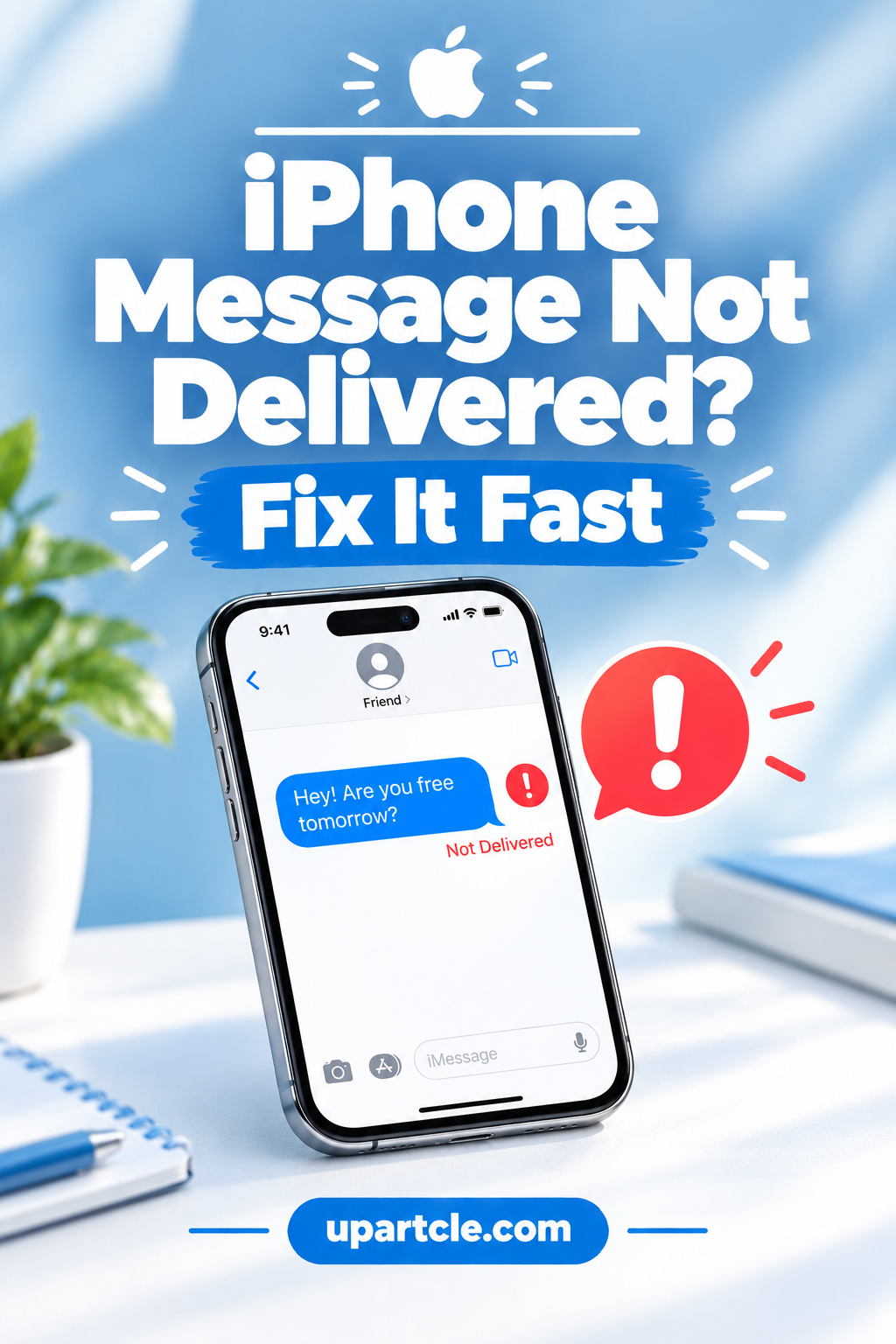
You tap send, and a few seconds later a small red exclamation mark appears beside your text with the words “Not Delivered.” If you are dealing with an iPhone message not delivered alert, the cause is usually simple: your phone could not reach Apple’s iMessage service or your carrier at that moment. This guide explains what the alert means, the difference between blue and green bubbles, and the fixes Apple recommends, in the order that is worth trying. It also covers the setting that makes your iPhone fall back to SMS automatically, and what to do when only one contact fails. Follow the steps one at a time and test after each one.
Tested on: [add your iPhone model and iOS version here], [date you tested]
Quick Answer
When you see an iPhone message not delivered alert, Apple’s support page tells you to do three things in this order:
- Check your network connection.
- Tap the red exclamation mark, then tap Send as Text Message.
- Contact your carrier if it still fails.
You can also turn on Send as SMS in the Messages settings, so your iPhone does this automatically when iMessage is not available. The rest of this guide explains each step and adds the checks that fix most remaining cases.
What Does “Not Delivered” Mean on iPhone?
The red exclamation mark means your iPhone tried to send the message and could not complete the delivery. It does not tell you the exact reason. Behind the scenes, the message could have failed because your internet connection dropped, because iMessage was not available for that contact, or because your carrier could not send an SMS.
Because the alert is vague, the most efficient approach is to start with the checks that cost nothing and take seconds, and only then change settings.
[SCREENSHOT: your own Messages screen showing the red exclamation mark and “Not Delivered” label, with the contact name hidden]
Blue Bubbles vs Green Bubbles: Why It Matters
Messages on iPhone travel in two different ways, and understanding this makes the fixes much easier.
- Blue bubbles are iMessages. They are sent over the internet (Wi-Fi or mobile data) between Apple devices.
- Green bubbles are text messages. They are sent through your carrier as SMS or MMS, and they also work with people who do not use an iPhone.
An iMessage needs a working internet connection and iMessage must be turned on. A text message needs a working carrier connection. Many “Not Delivered” cases happen when an iMessage cannot go out and the iPhone is not set to fall back to a text message. If you want to understand why some chats show green instead of blue, see our guide on why your texts are green instead of blue.
Common Reasons for an iPhone Message Not Delivered
Apple’s support page groups the usual causes into a few areas:
- A weak or missing network connection on Wi-Fi, mobile data, or both
- iMessage not being available for that contact at that moment
- Messages settings that are switched off or set to the wrong number or email
- Carrier or SMS problems, for example when a text message also fails
- A problem on the receiving side, for example when the other phone is off or the number is wrong
Notice that two of these sit outside your phone. That is why the final step on Apple’s list is to contact your carrier.
Fix 1: Check Your Network Connection
This is the first step on Apple’s official page, and it solves many cases.
- Open Safari and load any page, to confirm that your internet works.
- If you are on Wi-Fi, switch to mobile data for a moment, or the other way around.
- Turn on Airplane mode, wait about ten seconds, and turn it off to force a reconnect.
- Move to a place with better signal if you are in a basement, lift, or crowded area.
- Try sending the message again.
If the page will not load either, the problem is your connection, not Messages. Fix the connection first, and the message will usually go through.
Fix 2: Tap the Red Exclamation Mark and Send as Text Message
If the message still will not send, Apple’s steps are to tap the red exclamation mark and choose Send as Text Message.
- Open the conversation with the failed message.
- Tap the red exclamation mark beside the message.
- Tap Send as Text Message.
This sends the message as a green-bubble SMS through your carrier instead of as an iMessage over the internet. It is the quickest way to get an urgent message out when iMessage is having trouble. Keep in mind that text messages can count against your plan, so check your plan if you send many of them.
[SCREENSHOT: the menu that appears after tapping the exclamation mark, with the “Send as Text Message” option visible]
Fix 3: Turn On “Send as SMS” So It Happens Automatically
Apple says you can set up Messages to try SMS automatically when iMessage is not available. This prevents many “Not Delivered” alerts before they appear.
- Open Settings.
- Go to Apps → Messages. On older iOS versions, go to Settings → Messages.
- Turn on Send as SMS.
From now on, if an iMessage cannot be delivered, your iPhone will try to send it as a text message. This is especially helpful when your internet connection is unreliable.
Fix 4: Make Sure iMessage Is On and Your Number Is Selected
If iMessage is turned off, or if your phone number is not selected for sending and receiving, messages can fail or arrive on the wrong device.
- Open Settings → Apps → Messages (older iOS: Settings → Messages).
- Check that iMessage is turned on.
- Tap Send & Receive.
- Make sure your phone number is selected, and not only your Apple Account email address.
Apple notes that if you also use another Apple device such as an iPad, your settings may be set to receive messages at your Apple Account email instead of your phone number. If you do not see your phone number in the list, Apple’s page explains how to link your number to your Apple Account, and how to set up Text Message Forwarding so that texts show on all your Apple devices.
[SCREENSHOT: the Send & Receive screen with your phone number ticked]
Fix 5: Restart Your iPhone
Restarting is a basic step that Apple’s guide has listed for message problems. It clears temporary glitches in the Messages app and the network connection without touching your data.
- Turn off your iPhone using the normal power-off method for your model.
- Wait about thirty seconds.
- Turn it on again and open Messages.
- Try sending the message again.
It sounds simple, but a restart often resolves cases where messages are stuck after a signal change or an update.
Fix 6: Turn On Wi-Fi Calling If Your Signal Is Weak
Apple states that if you turn on Wi-Fi Calling, you can send SMS messages over Wi-Fi. This helps if your cellular signal is poor at home or work, but your Wi-Fi is fine.
- Open Settings.
- Look for Cellular (or Mobile Service) and then Wi-Fi Calling. The exact menu differs by region and carrier.
- Turn on Wi-Fi Calling if your carrier supports it.
Not every carrier offers this feature, so if you do not see it, move on to the next fix.
Fix 7: Check MMS Messaging for Photos and Group Texts
If your plain text messages work but pictures, videos, or group messages fail, MMS may be the problem. Apple’s older support guide advises turning on MMS Messaging in the Messages settings if you want to send group MMS messages.
- Go to Settings → Apps → Messages (or Settings → Messages on older iOS).
- Look for MMS Messaging and turn it on, if the option appears for your carrier.
Availability depends on your carrier and region. If the setting is missing, your carrier may need to enable the service for your plan.
Fix 8: If You See an iMessage Activation Error
Sometimes the problem is not sending but activating iMessage itself, for example after a SIM change or a new phone. Apple’s activation guide advises turning iMessage off first, and says that if the issue continues after 24 hours you should contact your carrier to make sure your number can receive SMS messages, because an iPhone uses SMS to activate your number with iMessage.
- Go to Settings → Apps → Messages and turn off iMessage.
- Wait, then turn iMessage back on.
- If it still shows an error after 24 hours, contact your carrier.
Do not keep switching iMessage on and off repeatedly. Give it time between attempts, because activation requests need a moment to complete.
Fix 9: Contact Your Carrier or Apple Support
The last step on Apple’s official page is to contact your carrier, because some failures are caused by SMS or MMS services that only the carrier controls. When you contact them, say clearly:
- That iMessage works or does not work.
- That “Not Delivered” appears even after you try Send as Text Message.
- Whether it happens with every contact or only one.
- Whether you recently changed your SIM, your plan, or your phone.
If your carrier confirms everything is fine on their side, Apple also lists Apple Support as the next step.
What If Only One Contact Fails?
Test with another contact first. If messages to other people work, the problem is more likely tied to that specific contact than to your iPhone. Check these points:
- The saved number is correct and includes the right country code.
- The person’s phone is on and has signal or internet.
- Your message sends successfully when you choose Send as Text Message.
A single failing contact is often a number or connection issue on their side, so it helps to try reaching them in another way and ask them to check their phone.
Optional Last Step: Reset Network Settings
This step is not on Apple’s messages page, but it is a general fix for connection problems, so some people try it before contacting their carrier. It removes saved Wi-Fi networks and passwords, so use it only if you know your Wi-Fi password.
- Open Settings → General → Transfer or Reset iPhone → Reset.
- Tap Reset Network Settings.
- Reconnect to your Wi-Fi network and try sending the message again.
What You Should Not Do
- Do not pay for apps that promise to “fix iMessage.” The real fixes are in Settings and with your carrier.
- Do not erase your iPhone as a first step. It is rarely needed for this problem, and you can lose data.
- Do not assume a blocked number. The alert alone does not tell you the reason.
- Do not resend the same message many times. It can create duplicate messages once the connection returns.
Quick Reference Table
| Symptom | Likely cause | Fix to try |
|---|---|---|
| Not Delivered on every message | Connection or settings | Fix 1, 3 and 4 |
| Not Delivered, but text version works | iMessage unavailable | Fix 2 and 3 |
| Photos and group texts fail | MMS not enabled | Fix 7 |
| Messages fail after a new SIM or phone | iMessage activation | Fix 8 |
| Only one contact fails | Their number or phone | Test with others, use text message |
| Everything fails, even texts | Carrier or SMS problem | Fix 9 |
How to Prevent an iPhone Message Not Delivered Alert
- Keep Send as SMS turned on.
- Keep your iPhone updated, because Apple improves Messages in updates.
- Check that your phone number is selected under Send & Receive after any SIM or phone change.
- Turn on Wi-Fi Calling if your signal is weak at home or work.
- Keep an eye on your carrier plan, so SMS and MMS service is active.
Conclusion
An iPhone message not delivered alert looks alarming, but the steps are logical. Check your connection, tap the red exclamation mark and send as a text message, and turn on Send as SMS so your iPhone does it for you. Then confirm that iMessage is on and your number is selected, restart the phone, and move on to Wi-Fi Calling, MMS and carrier checks if the problem continues. Work through the steps one at a time and test after each one, and you will usually find the cause quickly.
FAQs
Why does my iPhone say “Not Delivered” but my friend got the message? Sometimes a delay in the connection makes the alert appear even though the message arrives. Ask the person whether it came through before sending it again, to avoid duplicates.
Does “Not Delivered” mean I have been blocked? No. The alert does not give a reason, and many ordinary issues can cause it, such as a weak connection or settings. Do not draw that conclusion from this alert alone.
What is the difference between “Not Delivered” and green bubbles? “Not Delivered” is an alert that the message failed. Green bubbles simply mean the message was sent as a text message instead of an iMessage.
Will sending as a text message cost me money? It depends on your plan. Many plans include unlimited texts, but some do not, so check your plan if you send many messages that way.
Do I need to turn off iMessage to fix this? Not usually. Turning iMessage off and on is mainly recommended for activation errors, and Apple advises giving it time before trying again.
Should I contact Apple or my carrier first? Apple’s own page lists your carrier first, because SMS and MMS problems are often on the carrier side. Apple Support is the next step if the carrier cannot help.

Welcome to Upartcle! I am Hafiz Ahsan, an SEO and content writer helping people find the best wishes, messages, and quotes for every occasion.